Targeted Feature Flags with Azure App Configuration and Custom ITargetingContextAccessor

Hi Everyone 👋
We've all had to roll out some form of feature management, whether it was static values in an appsettings.json file or a fully managed service with feature management based on various rules.
In this post we'll be unpacking the Azure App Configuration Feature Management a little bit, using a Targeted filter and creating a custom ITargetingContextAccessor implementation.
You can check out my feature_flags repository and play around if you want.
It contains all the code examples for this post.
The repo is deployable to Azure, just callazd upor run it locally if you have an App Configuration resource already.
Introduction
Azure has had App Configuration available for quite some time now, and I knew it provided Feature Management out of the box, but I wanted to see if it could provide a more dynamic experience than a Feature On/Off switch, or a complex json blob with a custom filter.
I had a little dive into the App Configuration Feature Management Documentation and was pleasantly surprised with the Targeted filter type.
When I say dynamic experience - I tried to see if I could manage feature flags at multiple levels, let's say enable it for certain users, as well as certain groups (or companies, modules, countries, you get it...)
The Azure App Configuration Feature Flag with a Targeted filter allowed me exactly that.
- A simple but meaningful UI that allowed me to visually enable or disable features for certain users or groups.
- RBAC to allow fine grained control on who can make changes to the feature flags
- Configurable refresh intervals based on my application's needs
- An easy to implement Interface to allow custom feature evaluation
Obviously there are loads more benefits, these were the top 4 requirements I wanted to tick off in this post.
The start
Microsoft has some really good documentation on how to get started with Feature Flags and Targeted filters.
Microsoft describes it as a strategy that you can use to progressively roll out new features by targeting a known group of uniquely identifiable entities.
You can read up more about it in the documentation, but I wanted to share an important part of how this filter work - the evaluation flow.
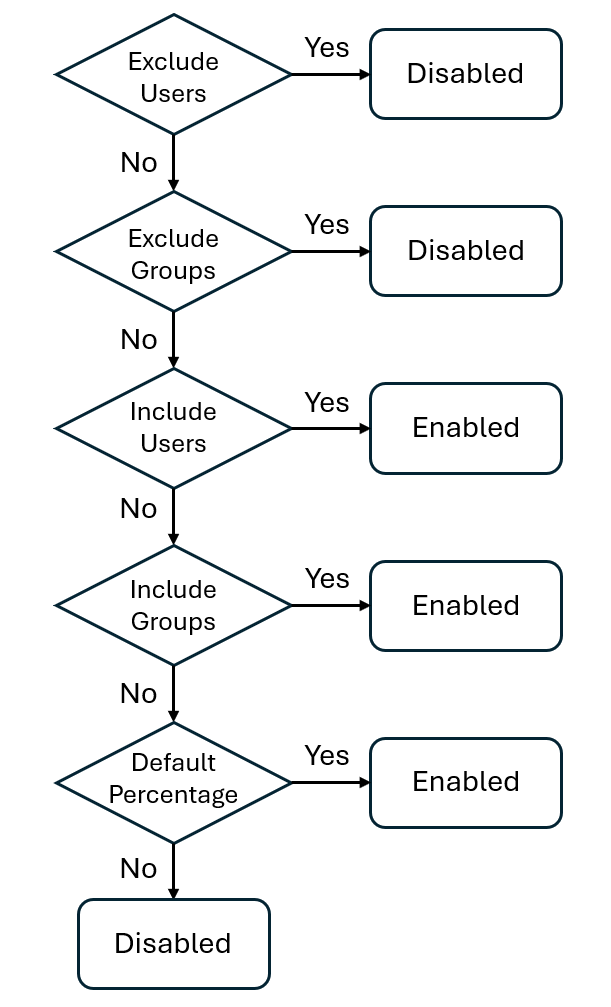
This shows you how the users and groups you configure within the Targeted filter will be evaluated.
This was really cool to see and slightly more than I was expecting!
I don't see myself needing a feature flag where I want to exclude users, exclude groups, Include users, include groups, and have a percentage weight to it.
My requirements stopped at
on for everyone, but exclude these users and groupsandoff for everyone, but include these users and groups
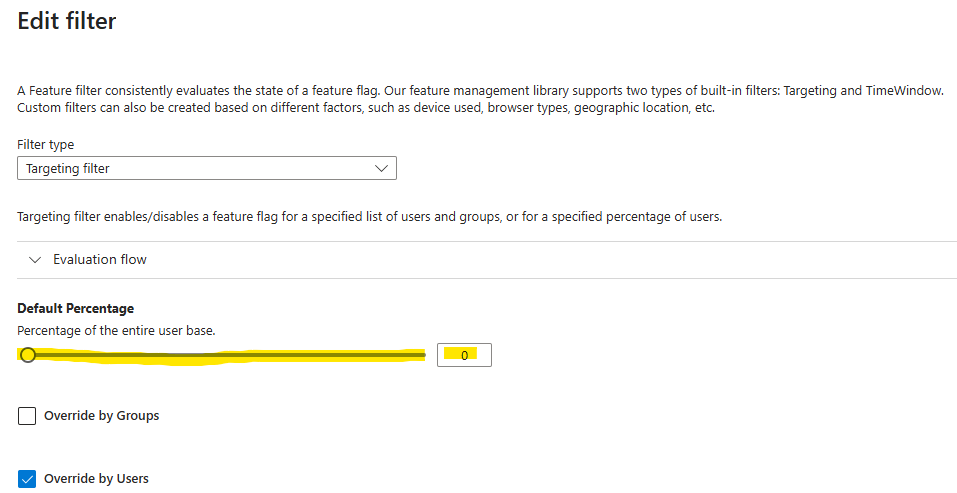
Next is the Default Percentage slider - this is great because you can enable a feature, but set the default percentage of entities that it's on for.
This matches my need of a feature being enabled - but on for everyone by default, or off for everyone by default
Configuring Services
Okay let's finally dive into my code and see how I configured everything.
var builder = WebApplication.CreateBuilder(args);

// Retrieve the endpoint
string endpoint = builder.Configuration.GetValue<string>("Endpoints:AppConfiguration")
    ?? throw new InvalidOperationException("The setting `Endpoints:AppConfiguration` was not found.");

// Load configuration from Azure App Configuration
builder.Configuration.AddAzureAppConfiguration(options =>
{
    options.Connect(new Uri(endpoint), new DefaultAzureCredential());
    options.UseFeatureFlags(options =>
    {
        options.SetRefreshInterval(TimeSpan.FromSeconds(30));
    });
});

builder.Services.AddFeatureManagement()
    .WithTargeting();

//register the AzureAppConfigurationRefresherProvider services that's required for automatic refresh.
builder.Services.AddAzureAppConfiguration();
This looks pretty standard and matches what the documentation provided. So why the long blog post?
You can see I added the Azure App Configuration and set the RefreshInterval.
Although the default is 30 seconds anyway, I like to set thes values explicitly.
It creates visibility for myself or the team - since not everyone has the same context.
When initially testing it out it wasn't obvious to me yet, but builder.Services.AddFeatureManagement() registered the services as Singleton services. More about it later.
The builder.Services.AddAzureAppConfiguration() ensures the RefreshProvider is loaded which will be required by the middleware that I register next.
Middleware and endpoints
var app = builder.Build();

//middleware that will call refresh based on the refresh interval
app.UseAzureAppConfiguration();

app.MapGet("/feature-flag", async (IFeatureManager featureManager) =>
{

    if (await featureManager.IsEnabledAsync("Demo"))
    {
        return Results.Ok("Feature Demo is enabled for you");
    }

    return Results.Ok("Feature Demo is disabled for you");
});


app.MapGet("/enabled-flags", async (IFeatureManagerSnapshot featureManager) =>
{

    var enabledFeatures = new List<string>();
    await foreach (var feature in featureManager.GetFeatureNamesAsync())
    {
        if (await featureManager.IsEnabledAsync(feature))
        {
            enabledFeatures.Add(feature);
        }
    }
    return Results.Ok(enabledFeatures);

});

app.Run();
The app.UseAzureAppConfiguration(); added the middleware that will actually refresh the feature flag values.
Interestingly enough, this doesn't mean that the feature flags will refresh every 30 seconds (or on your Refresh Interval) - it actually just means that, at most, it will refresh every 30 seconds.
It can refresh at a much slower rate if there is no traffic and the middleware isn't triggered.
This prevents the service from blasting the App Configuration unnecessary and slowing down your services.
You can also remove the middleware and refresh the feature flags on demand.
The first endpoint /feature-flag checks if I'm enabled for the Demo feature. Pretty simple.
The second endpoint /enabled-flags will return all the feature flags I'm enabled for.
This was only for testing purposes. It's probably better than checking each feature flag independently over numerous network calls, but could also be really heavy if I have a large amount of feature flags and complex or slow evaluation logic.
The challenges
- Out of the box, the Targeted filter comes with a default Context Accessor that works by utilizing the
HttpContext.User.Identity.Nameas theUserIdand theHttpContext.User.Claimsof type Role forGroups- This is great if you're using Entra ID or other common Identity Providers.
But often Authentication and Authorization is split, or you want to roll out features based on some other user related value like location, age, net worth, etc. - Case sensitive evaluation: Turns out the Targeted filter is case sensitive by default. I'm not a fan and I'm not dealing with the headache of debugging
test@test.comvsTest@test.com - Singleton services: The Feature Management services are added as Singleton services, so it might be a problem if you want to use scoped services in your custom implementation.
It does make sense why it's registered as Singleton services, feature flags are "configuration" and shouldn't change per request, Singletons are more performant to load and it will improve consistency (if you have a high amount of traffic, scoped services might end up having different values - although you shouldn't be relying on feature flags if you need that level of consistency in my opinion)
The solution
I'll start by addressing the case sensitive evaluation.
If you want to have case insensitive evaluation, you need to configure the TargetingEvaluationOptions. Easy as that.
//case insensitive comparison for FeatureManager.
builder.Services.Configure<TargetingEvaluationOptions>(options =>
{
    options.IgnoreCase = true;
});
If you need to use Scoped services for your FeatureManagement, you can change your service registration to the following:
builder.Services.AddScopedFeatureManagement()
    .WithTargeting();
Now my IFeatureManager is registered as a Scoped service and can use other Scoped services.
Just a note on the Scoped vs Singleton services, if I call
await featureManager.IsEnabledAsync("Demo")twice, it will evaluate the feature flag twice. There is no magic in the Feature Manager that will cache the result or anything differently between the Scoped vs Singleton instances.
Custom feature flag evaluation using ITargetingContextAccessor
Now this was the interesting part.
Creating your own implementation of the interface allows you to inject any context you want to evaluate the user or groups parameters.
The ITargetingContextAccessor Interface is straight forward and has a single method ValueTask<TargetingContext> GetContextAsync();
The TargetingContext class has two properties to represent the UserId and a list of groups.
For this example, I create a UserService that will return some user related information, more specifically, companies I have access to.
public class UserService : IUserService
{
    //Get user related information
    public User GetCurrentUser()
    {
        var groups = new List<Companies>
        {
            new Companies(new Guid("A9726B81-F306-450B-B26B-0EB061700633"), "CompanyA"),
            new Companies(new Guid("5A1230AD-48FC-461A-B44F-1D3477974664"), "CompanyB"),
            new Companies(new Guid("835DAB0A-8378-44D2-8F93-9FC49D3D7849"), "CompanyX")
        };
        return new User(new Guid("41EAA244-9939-48D4-9820-B0B41F716F81"), "MockUser", groups);
    }
}

public record User(Guid ID, string Name, List<Companies> Companies);
public record Companies(Guid ID, string Name);
I then created my custom implementation of the ITargetingContextAccessor interface
public class DemoTargetingContextAccessor : ITargetingContextAccessor
{
    private readonly IUserService _userService;

    public DemoTargetingContextAccessor(IUserService userService)
    {
        _userService = userService;
    }

    public ValueTask<TargetingContext> GetContextAsync()
    {
        var user = _userService.GetCurrentUser();
        var targetingContext = new TargetingContext
        {
            UserId = user.Name.ToString(),
            Groups = user.Companies.Select(x => x.Name.ToString())
        };

        return new ValueTask<TargetingContext>(targetingContext);
    }
}
In this example I used the User Name and Company Name values to populate the TargetingContext - so in my Targeted filter in the App Configuration I can enter nice human readable values like CompanyX, or Kyle, etc.
I could have easily used the ID or any other values, and configured the Targeted filter accordingly.
Below is an example where I registered a Targeted filter with the Default Percentage set to 0 - so by default off for everyone, and I added mockuser to the Include Users - so this filter is only enabled for the single user.
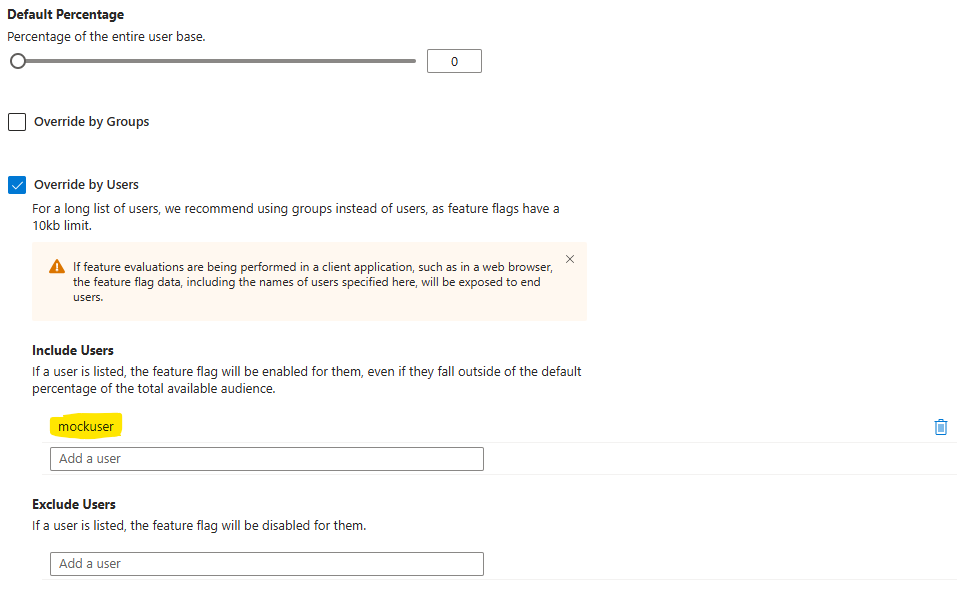 Lastly, I registered the new services and I was done!
builder.Services.AddScoped<IUserService, UserService>();
builder.Services.AddScopedFeatureManagement()
    .WithTargeting<DemoTargetingContextAccessor>();
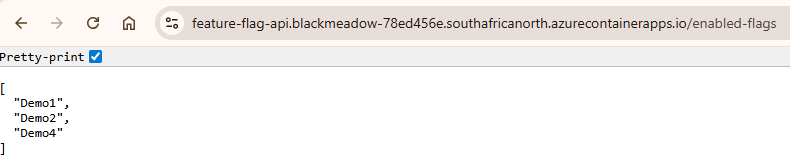
To test the feature management, I configured a few different features:
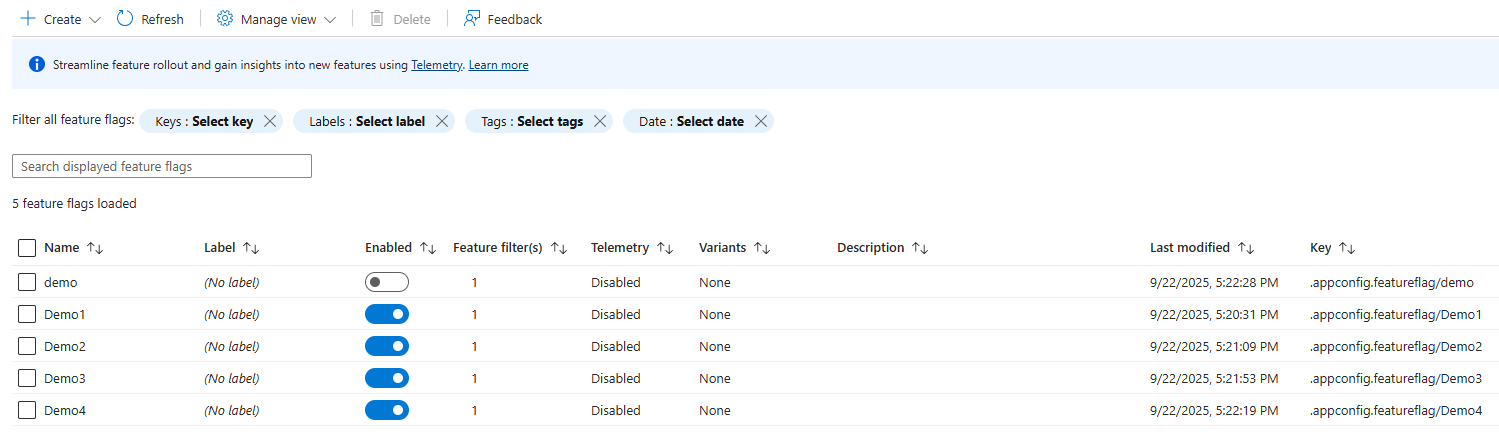
- Feature
Demo1enabled for mymockuser - Feature
Demo2enabled forcompanyz - Feature
Demo3disabled formockuserbut enabled forcompanyb - Feature
Demo4enabled with an empty Target filter but 100% allocation
And here is the response from my /enabled-flags endpoint
Some interesting bits
Remember earlier when I said that feature flags will always be evaluated every time when calling await featureManager.IsEnabledAsync("Demo") ?
The DefaultHttpTargetingContextAccessor comes with a really nice pattern where it caches the result for the duration of the request. A similar optimization should be considered if you want to create your own implementation.
HttpContext httpContext = _httpContextAccessor.HttpContext;

// Try cache lookup
if (httpContext.Items.TryGetValue(_cacheKey, out object value))
{
    return new ValueTask<TargetingContext>((TargetingContext)value);
}

// rest of the code

// Cache for subsequent lookup
httpContext.Items[_cacheKey] = targetingContext;
When overriding the users in the Targeting filter, there is a warning that feature flags have a 10kb limit.
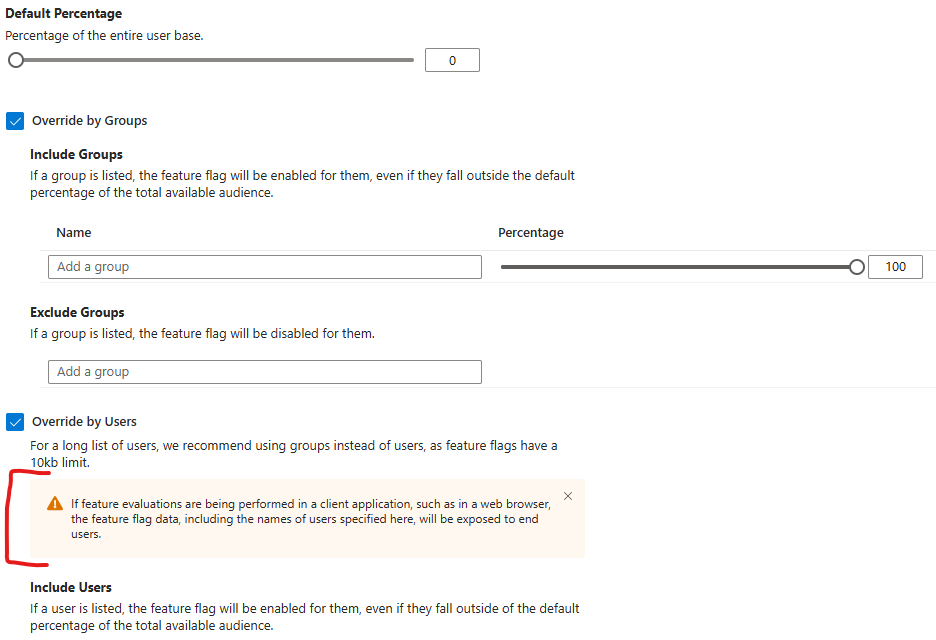
It's not really clear from that message if it only applies to filtering on users, or what exactly falls under that limit for the Targeted filter, and the same message doesn't appear anywhere else on the filter - but looking at the App Configuration FAQs it looks like it's a limit for a single key-value, which makes me believe it's for an entire "Feature Flag"
Looking at the structure for a Feature Flag we can do some simple math to calculate how many values you can filter on with a 10kb limit.
{
	"id": "demo",
	"description": "",
	"enabled": true,
	"conditions": {
		"client_filters": [
			{
				"name": "Microsoft.Targeting",
				"parameters": {
					"Audience": {
						"Users": [
							"User1",
							"User2"
						],
						"Groups": [
							{
								"Name": "CompanyA",
								"RolloutPercentage": 100
							},
							{
								"Name": "CompanyB",
								"RolloutPercentage": 100
							}
						],
						"DefaultRolloutPercentage": 0
					}
				}
			}
		]
	}
}
Let's assume you have really long names and a user filter uses 50 characters and a group filter uses 100 characters.
Each user = 50 characters (plus quotes and commas). Let’s round to 55 bytes per user.
10240 / 55 = 186 users
Each group = 100 characters (plus JSON overhead like {"Name":"...","RolloutPercentage":100}). That’s closer to 130 bytes per group.
10240 / 130 = 78 groups
That's still a good number of users or groups that you can apply the filter to even if they have reeeeally long names.
With the rest of the json data in the structure I would be cautious going over 75 groups or 180 users - but you do the math
Try it out
Want to play around?
You can check out my feature_flags repository to get started.
It contains all the code examples for this post.
The repo is deployable to Azure, just call azd up or run it locally if you already have an App Configuration resource.